Skip to content
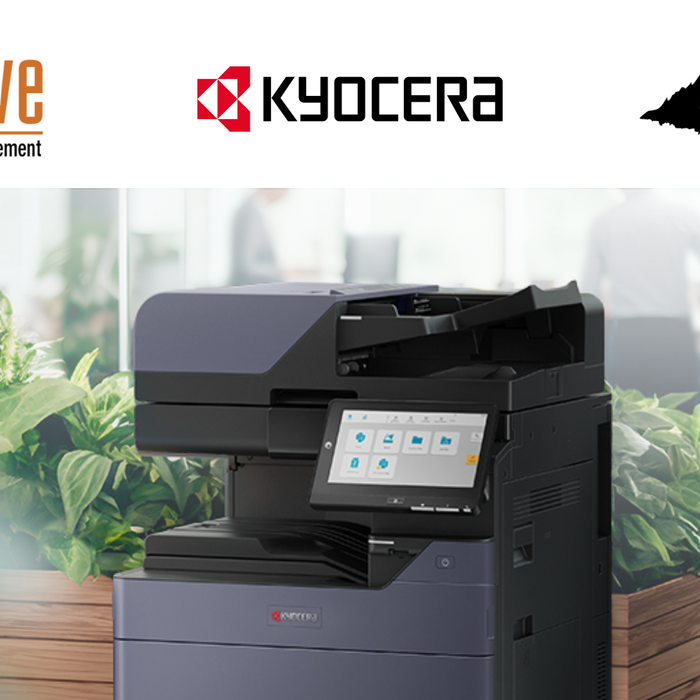
EXCITING NEWS! We are now an Authorised Kyocera Dealer for the Townsville region!

HOW TO PRINT A KYOCERA STATUS PAGE

Knowing how to print a status page from your Kyocera copier or printer can give you valuable information about the device.

The status page shows key details like toner levelsmeter reads (page counts), and network settings.

TASKalfa series, ECOSYS MFP series and FS‑MFP series with touch panels


System Menu / Counter → select ReportReport Print → choose Status Page → confirm Yes

ECOSYS P3045dn, ECOSYS M6030cdn


Menu → select Report → then Report Print → choose Status Page → press OK

or


Menu Report Print (OK) → Status Page → press OK twice

FS‑1025 MFP, FS‑1120 MFP, FS‑1125 MFP, FS‑1320 MFP, FS‑1325 MFP, ECOSYS P6030cdn, ECOSYS P5026cdw


Menu → navigate to Report Print → select Print Status Page → press OK

or

Wake with GO → Menu → Print ReportPrint Status Page → press OK twice

or


Menu System MenuReportStatus Page → press OK, select Yes, press OK again

FS‑1020 MFP, FS‑1220 MFP


Press and hold the Copies/Density/Program selector button for 5 seconds

ECOSYS P2235 Series (e.g., P2235 dw)


Press and hold the Go key (green) for 3 to 9 seconds to print the Status Page

or


FS‑1060dn, FS‑1041


Press and hold the GO button for about 5 seconds to print the Status Page

FAQ

What information does a status page show?

A Kyocera status page provides detailed information about your printer, including:

• Toner levels

• Total page count (life counter)

• Network settings (IP address, MAC address)

• Serial number and firmware version

It’s a useful diagnostic tool for IT support or when booking a service with our Cairns-based technicians.

How do I check toner levels on my Kyocera printer?

You can check toner levels by printing a Status Page directly from the printer's control panel. On most models, go to:

Menu > Report Print > Status Page > OK

This will include toner levels, drum life, and page counts. On touch screen models, go to:

System Menu > Report > Report Print > Status Page > Yes

Alternatively, you can view toner levels via the printer's web interface (Command Center RX) by entering the printer’s IP address into a browser

Where can I service my Kyocera printer in Cairns?

Right here at Evolve Equipment Management. We’re an authorised Kyocera dealer and service agent, offering:

• Onsite and remote support
• Genuine Kyocera parts and toner
• Preventative maintenance and service agreements

We support businesses throughout Cairns, the Tablelands, Port Douglas, Innisfail, as well as remote Far North QLD including Cape York, Torres Straits and the Gulf. Check out the areas of North Queensland we regularly visit and service. If you're location isn't on the list, just call. Chances are, we go there too!

Which Kyocera models support Command Center RX?

Most Kyocera ECOSYS and TASKalfa printers with network capability support Command Center RX, including:

• ECOSYS P5026cdw / P2040dn / M2040dn

• TASKalfa MZ3200i / 2554ci / 5053ci

Command Center RX allows you to access printer data (toner levels, network status, etc.) via a web browser. Simply enter the printer’s IP address in your browser to access it.

evolve insights